
Create a customs import declaration
A customs import declaration is created with assistance from purchase orders. A template fills in default values and the lines come from the orders.
Scenario
Dæmi ehf. buys goods from a foreign supplier and the shipment has arrived. The clerk creates a declaration from the purchase order, checks it for errors and sends it to customs.
Before you start
- The purchase order is for a foreign vendor with the right currency and posting groups.
- The items have tariff numbers, on the item card or in Item customs settings.
- There is an import customs declaration template.
Walkthrough
-
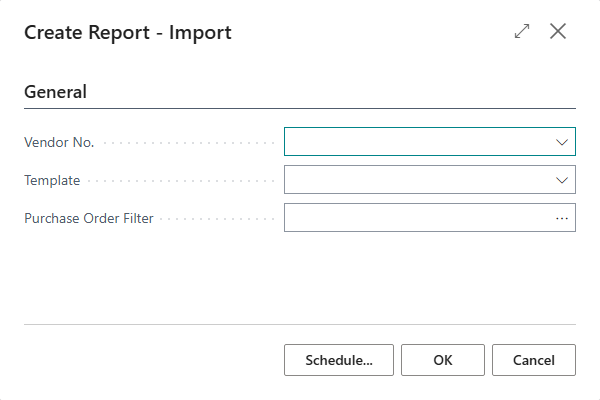
Open Customs Clearance Reports and choose New import report w/assistance.
-
In Vendor No., choose the vendor. Its template fills Template. Leave the field empty if the orders are from more than one vendor.
-
Choose Template if it wasn't filled.
-
In Purchase Order Filter, choose one or more purchase orders.
-
Choose OK. The declaration opens with lines from the orders.
-
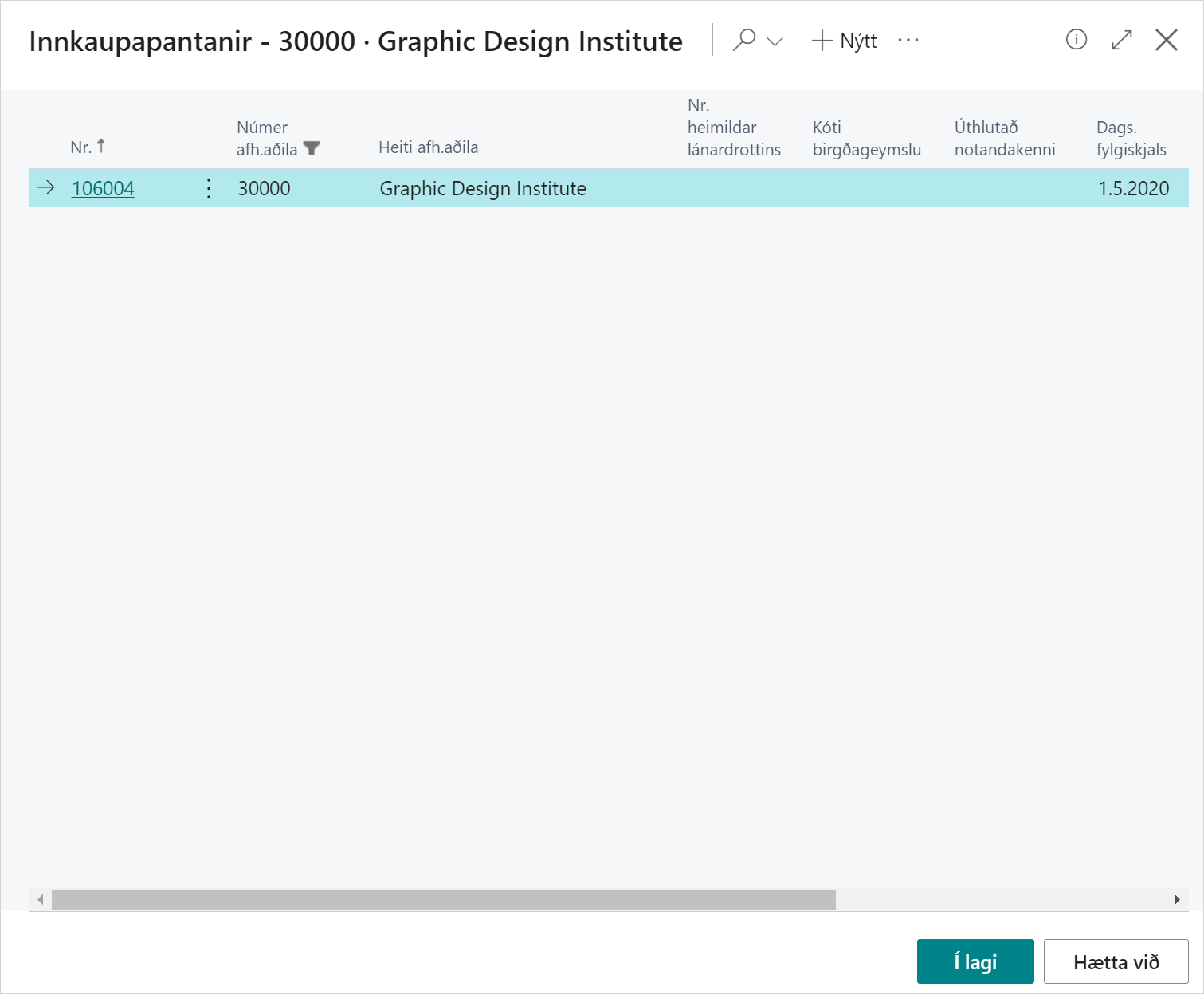
To add more orders, choose Add Purchase Order to Report and pick the orders. The list only shows orders that aren't on another declaration.
-
Review the header and lines and fill in what is missing. Next, check and send the declaration.


Several vendors and currencies
You can put orders from several vendors and in several currencies on one declaration. The order with the highest amount in ISK decides:
- Its vendor becomes the consignor on the declaration.
- Its currency becomes the declaration currency, and all amounts are converted to it.

Samples
Goods the supplier sends without a price, such as samples, get a customs value from the purchase order. See Clear samples through customs.
Result
The declaration has the status Open and is on the Customs Clearance Reports list. The purchase orders show in the Purchase Orders factbox, where you can also post their receipt or remove an order from the declaration.
Next, validate and send the declaration.
What can go wrong
- "No. Series has not been set up for Customs Clearance Reports. Open Report Setup and select a No. Series." Set a number series in Customs setup.
- An order isn't in the list. It is already on another declaration. Remove it from there first.
- "Found no Purchase Orders to add". All purchase orders are already on declarations.
- "Cannot add Purchase Order to a report that has been sent to customs". You can only add an order when the declaration is Open or Error.
- A line has no tariff number. Set the tariff number on the item and choose Recalculate Report. Recalculating gets the values from the orders again and can overwrite changes you made.
See Help.