
Check and send a declaration
Before a declaration is sent, the system checks all its fields. A declaration with errors isn't sent.
Scenario
A clerk at Dæmi ehf. has created a declaration. The clerk checks it for errors, fixes them and sends it to customs.
Before you start
- The declaration is Open or Error.
- The connection to customs is set up, see EDI.
Walkthrough
-
On the declaration, choose Check document for errors.
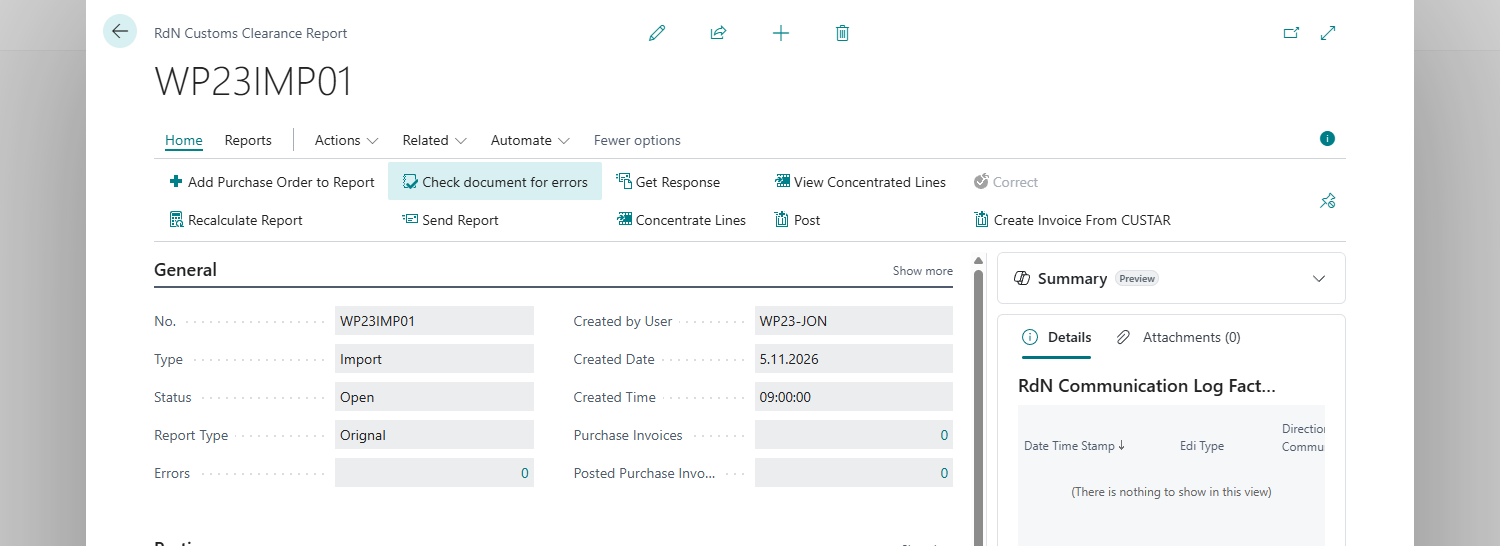
- If no errors are found, you get "No errors were found, report can now be sent to customs authorities."
- Otherwise the RdN CC Report Errors page opens with one line per error.

-
Fix the errors. On the RdN CC Report Errors page, Table and Field show where the error is, Error Message what is wrong and Current Value the value now. You can enter the right value in New Value and save it with OK, or fix the error on the declaration itself.
-
Choose Check document for errors again until no errors are found.
-
To see the declaration on the customs form before you send it, choose Open report on form.
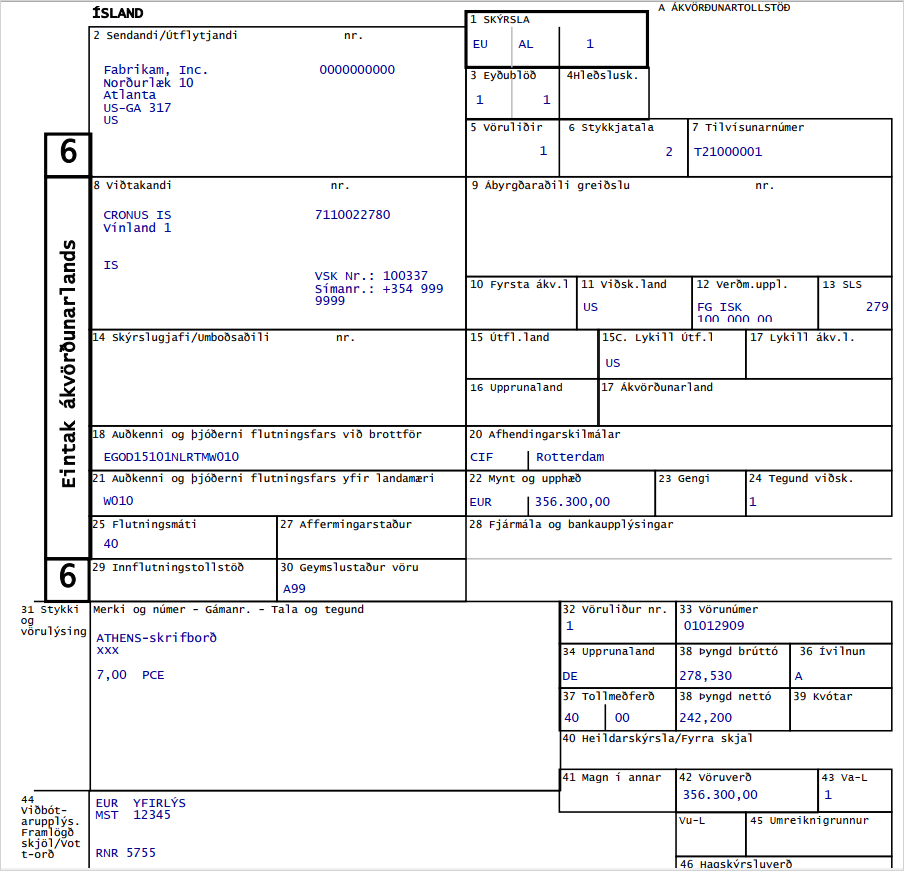
-
Choose Send Report. The system checks the declaration again and sends it only if no errors are found.
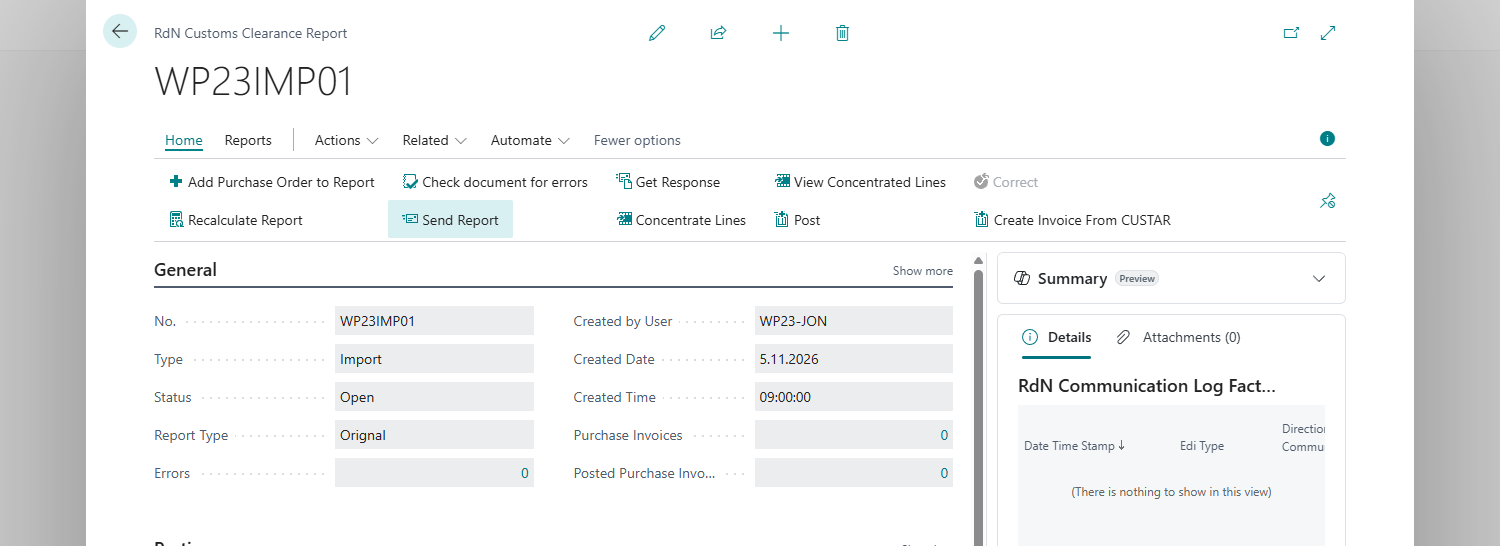


To see the EDI message itself, choose Write out Report. The message is downloaded but not sent.
Result
The system shows "Report sent!". The declaration has the status Sent and can't be changed. The CUSDEC message shows in the Communication Log FactBox. Next, get the replies from customs.
What can go wrong
- "Cannot export report with %1 errors". The declaration has errors. Choose Check document for errors and fix them.
- A sent declaration needs a change. This is only possible in agreement with customs, see Correct a declaration.
See Help.