
Create an invoice from a scanned image
Invoices from vendors often arrive as a PDF or image. In the Scanned Image List you create a purchase invoice or credit memo from the image, and the image stays with the document all through the approval.
Scenario
A bookkeeper at Dæmi ehf. receives an invoice from Prófun hf. as a PDF. She imports it, creates a purchase invoice from it and fills in the lines with the image beside her.
Before you start
- The invoice is saved as a file you can reach.
- The vendor has an Approver Group, or you know which group to choose.
Walkthrough
-
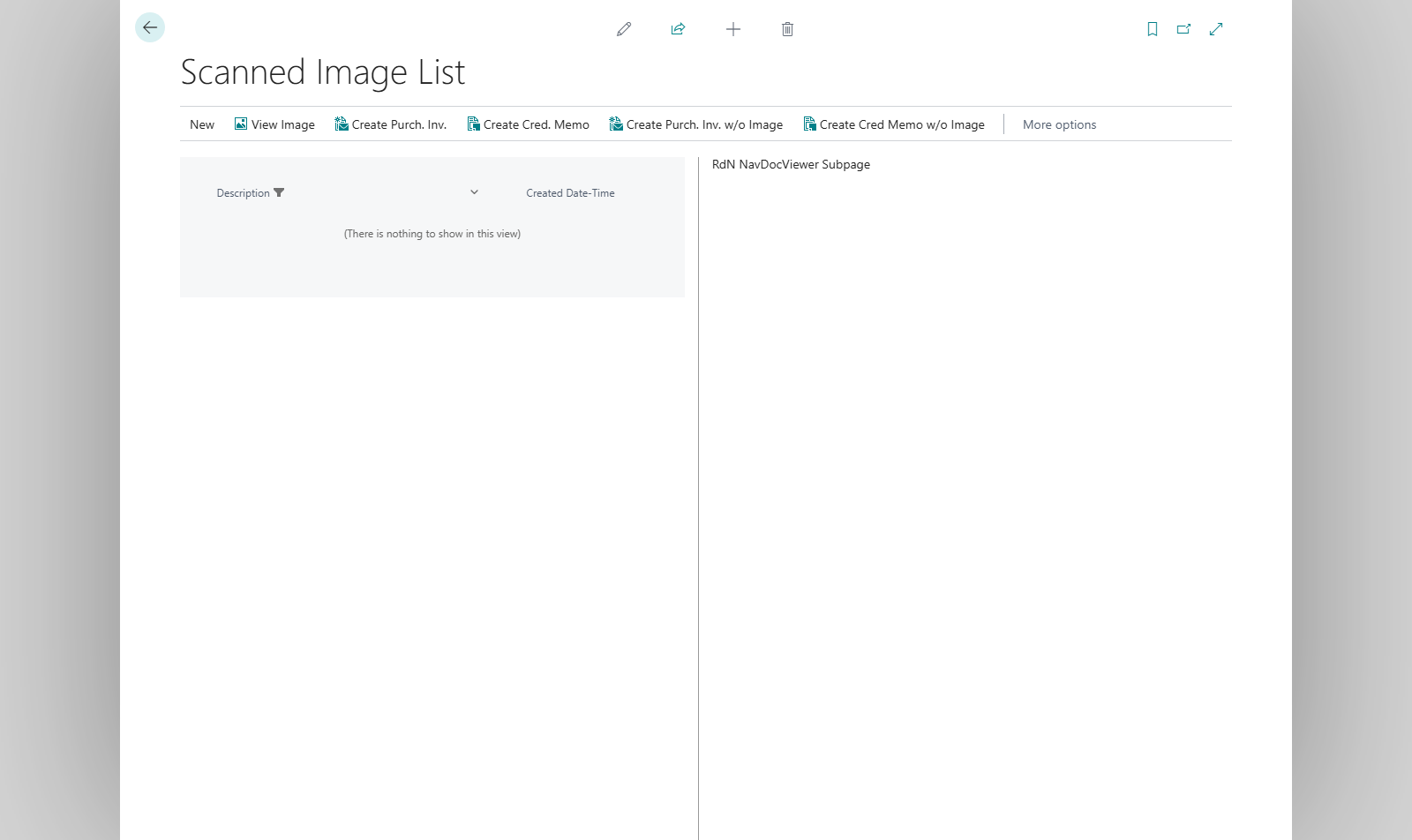
Open Scanned Image List. On the left is a list of images not yet used, and on the right the selected image.
-
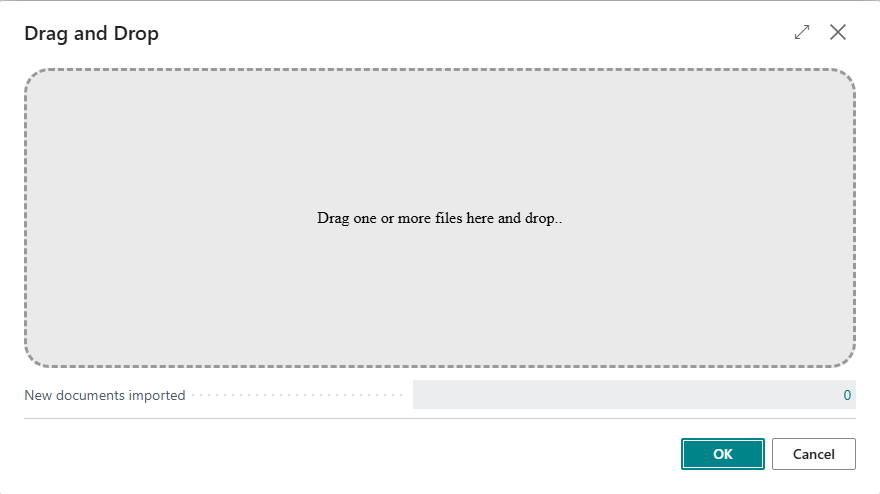
Choose Import Documents and select the file. If the Drag and Drop extension is installed you can also choose Drag and Drop and drag the files in.
-
Select the image and choose Create Purch. Inv. A purchase invoice opens with the image linked. If you select several images at once, the others go on the same invoice. For a credit memo choose Create Cred. Memo.
-
Choose the vendor. Approver Group is filled in from the vendor if it is set there. Fill in the lines.
-
To see the image on the invoice choose Images. There you can open the image, add an image or delete it.


If there is no image, choose Create Purch. Inv. w/o Image or Create Cred Memo w/o Image. To link an image later, choose Images on the document and then Add Image. The Scanned Image List opens and you choose the image.
Result
The invoice exists with the status Open and the image linked, and the image is gone from the Scanned Image List. Next you send it for approval, see Send for approval.
What can go wrong
- Drag and Drop gives Requested page not found. The Drag and Drop extension isn't installed. Use Import Documents.
- Images asks There are no images linked to this purchase document. Do you want to add an image? Answer Yes and choose the image.
- The wrong image was imported. Select it and choose Delete Image.
All messages are in Help.