
Import payroll
Import one month's payroll into the journal that should receive it. The import creates the lines; you review and post them yourself.
Scenario
The accountant at Dæmi ehf. imports payroll for February 2026 and compares the transactions with the payroll report before posting.
Before you start
- Connect Launa and check vendor matching.
- Have the month's payroll report available in Launa and the G/L accounts set up in Business Central.
- Select the correct journal batch. An empty batch keeps the import separate from other transactions.
Walkthrough
-
Open General Journals and select the batch that should receive the payroll.
-
Choose Payroll, then Import Payroll Transactions. This opens Launa Import Dialog.

-
Set Salary Year to
2026and Salary Month to2, then choose Close. The fields initially show the year and month of the work date.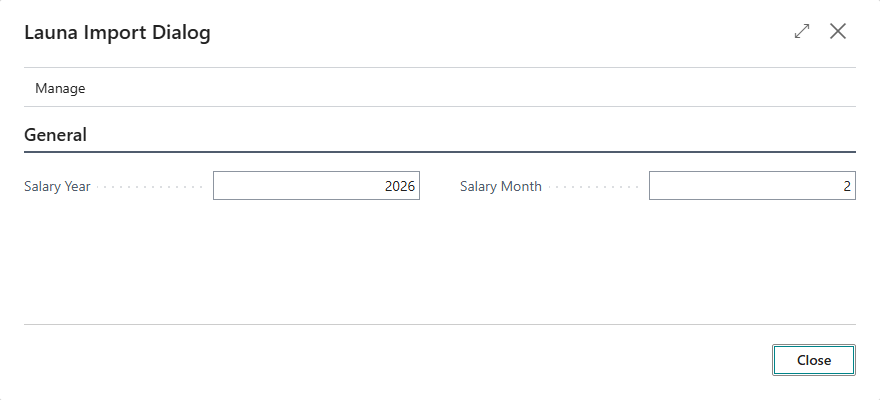
-
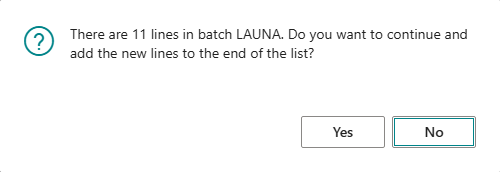
If the batch contains lines, you are asked whether to add new lines. Confirm only if that is intended and the period has not already been imported. The import does not prevent duplicates.
-
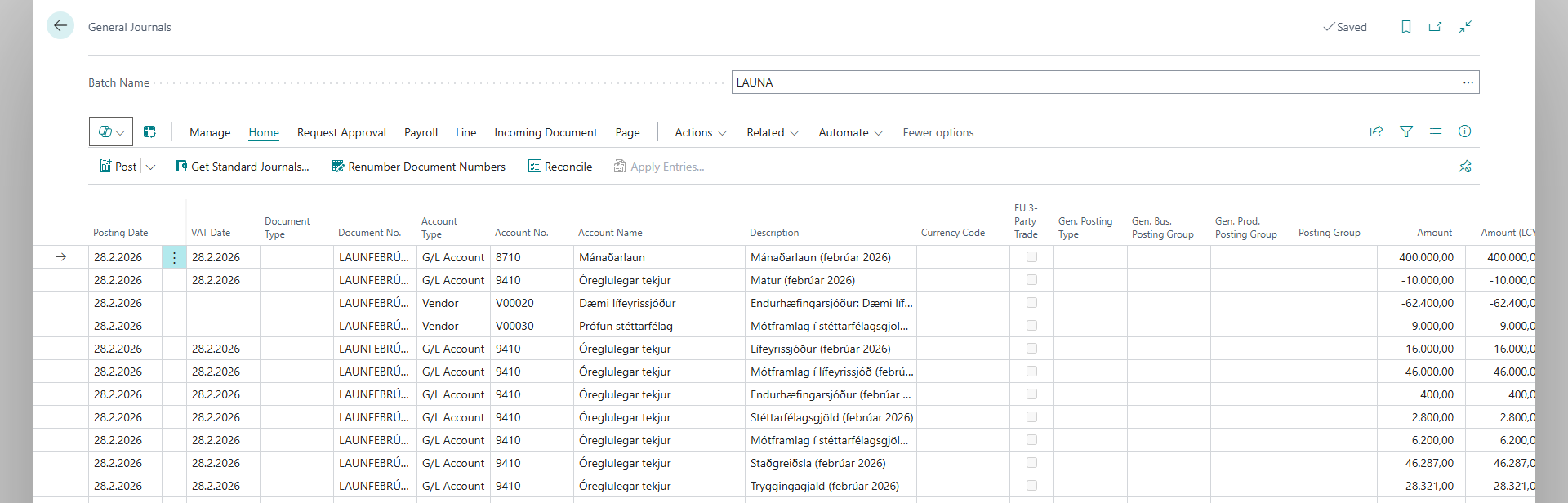
When Importing was successful appears, compare the lines with the payroll report: period, G/L accounts, vendors and amounts. Then post using the standard Business Central posting process.



Result
Unposted lines are in the selected batch with a posting date of 28 February 2026, the last day of the selected month. Amounts are rounded to whole currency units and zero-amount lines are omitted.
Vendor lines are combined by vendor within the batch, including existing vendor lines if there are any. The number of lines can therefore differ from the payroll report.
What can go wrong
If the connection fails, the report is empty or a vendor is missing, find the message in Help. Correct the cause and inspect the batch before retrying, so you do not import the same payroll twice.