
Configure the connection and storage
An administrator configures these values once for the Business Central environment so the extension can request an export and locate the backup in Azure Blob Storage. Provisioning Azure resources, an app registration, and external permissions is not performed by this AL extension.
Purpose
Correct authentication and SAS tokens let the extension submit a database export to the Admin Center and give a user with full access a way to download the completed file.
Prerequisites
- The Business Central online environment and target environment are known.
- The Azure Blob Storage account and container are ready and accessible.
- An administrator has received the app registration values, export SAS token, and read-only download SAS token from the person responsible for Azure and app registration setup.
- Admin Center app permissions have been granted outside the extension.
The extension does not create Azure resources, an app registration, Admin Center permissions, or user permissions.
Permissions needed
- RdN BC Backup - Full Access (
RDN BCB FULL) is for users who change setup, manage backups, and download files. - The user who submits the database export request needs D365 BACKUP/RESTORE. This also applies when the Job Queue submits the request.
- RdN BC Backup - Read Only (
RDN BCB READ) provides read access to setup, the backup log, and activity cues, but does not provide full management access or downloads.
Steps
-
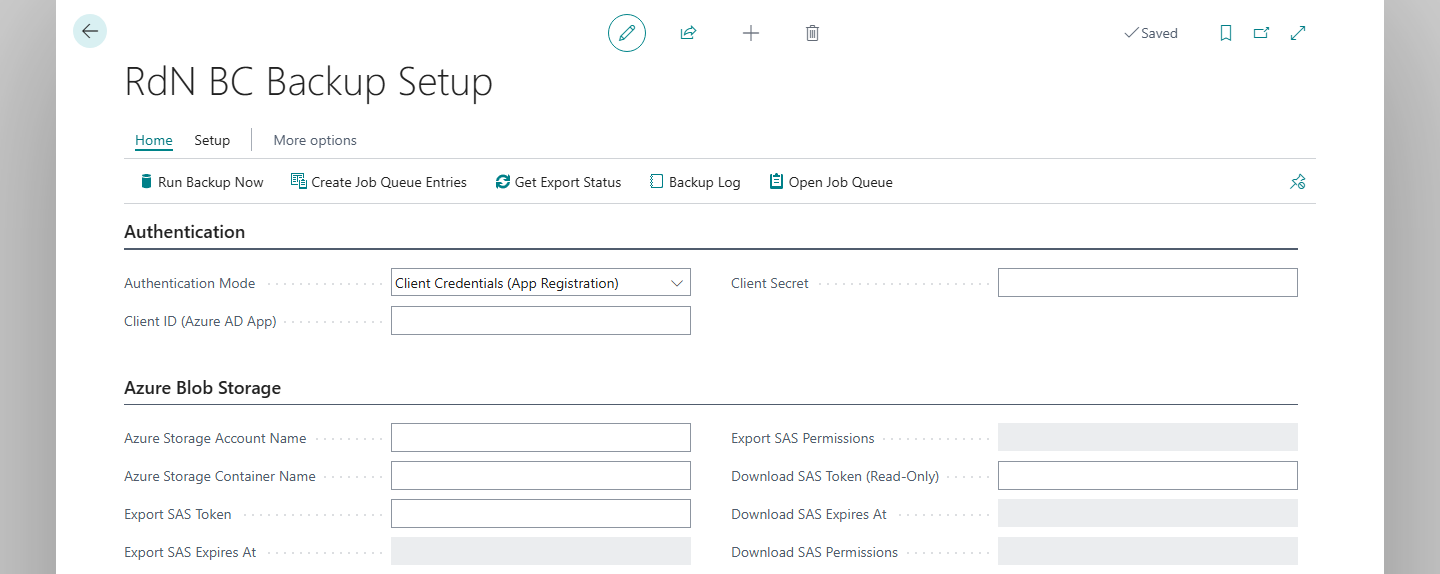
In Business Central, search for RdN BC Backup Setup. The extension creates a setup record when the page opens if one does not already exist.
-
If the setup is for the environment you are signed in to, select Initialize Environment. This fills in BC Tenant ID and BC Environment Name for the current environment. If you are configuring a different target environment, enter its values instead.
-
Choose an Authentication Mode:
- Select Client Credentials (App Registration) for recurring backups; this requires Client ID (Azure AD App) and Client Secret.
- Select Delegated (Current User) only for manual backups. The signed-in user must be an authorized Business Central administrator. This mode is not suitable for the Job Queue.
-
Enter the Azure account and container names. Then enter the export SAS token in Export SAS Token and the read-only download SAS token in Download SAS Token (Read-Only). Do not put SAS tokens in documentation, messages, or screenshots.
-
Select Validate Export SAS Token. A valid export token requires HTTPS, Blob account scope, Container and Object resource types, Read/Write/Delete/Create permissions, and at least 72 hours of validity after an export starts.
-
Select Validate Download SAS Token. A valid download token must be container-scoped, use HTTPS, and allow only Read (and optional List) permissions; it must not be expired.
-
Select Test Connection. This tests authentication and the Admin Center API, including permissions and the environment name. It does not test access to Azure Blob Storage.
-
Select Get Export Status to read the number of monthly exports remaining. Save the setup.

Verify it works
A successful setup displays a confirmation from Test Connection with the remaining export count. Validate Export SAS Token and Validate Download SAS Token show their expiry and permissions without displaying the tokens themselves. If the connection test fails, see Troubleshooting.
Next, run an on-demand backup. To email backup results, set up email notifications. Review the field meanings and defaults before changing other settings.